Create your first dataset FGAC policy
Select a user or group in a dataset's Data Access Policies tab and configure column masking and row filtering.
Collection and resource roles decide who can access a dataset. An FGAC (Fine-Grained Access Control) policy further limits which columns and rows an authorized user or group can see.
In this lesson, you will add one policy to admin_fgac_sample. It will redact email for one user or group and show only rows where region is Seoul.
Before you start
- You must be a D.Hub administrator or an Owner of the target dataset to manage policies.
- Prepare an ordinary user account for testing. Grant that user the Reader role on the dataset first.
Download and upload the practice file
This lesson uses a prepared CSV file. Select the link below to download the actual file before continuing.
Download admin_fgac_sample.csv
- Confirm that the downloaded file is named
admin_fgac_sample.csv. - In D.Hub, open the Admin Practice collection. Create it first if it does not exist.
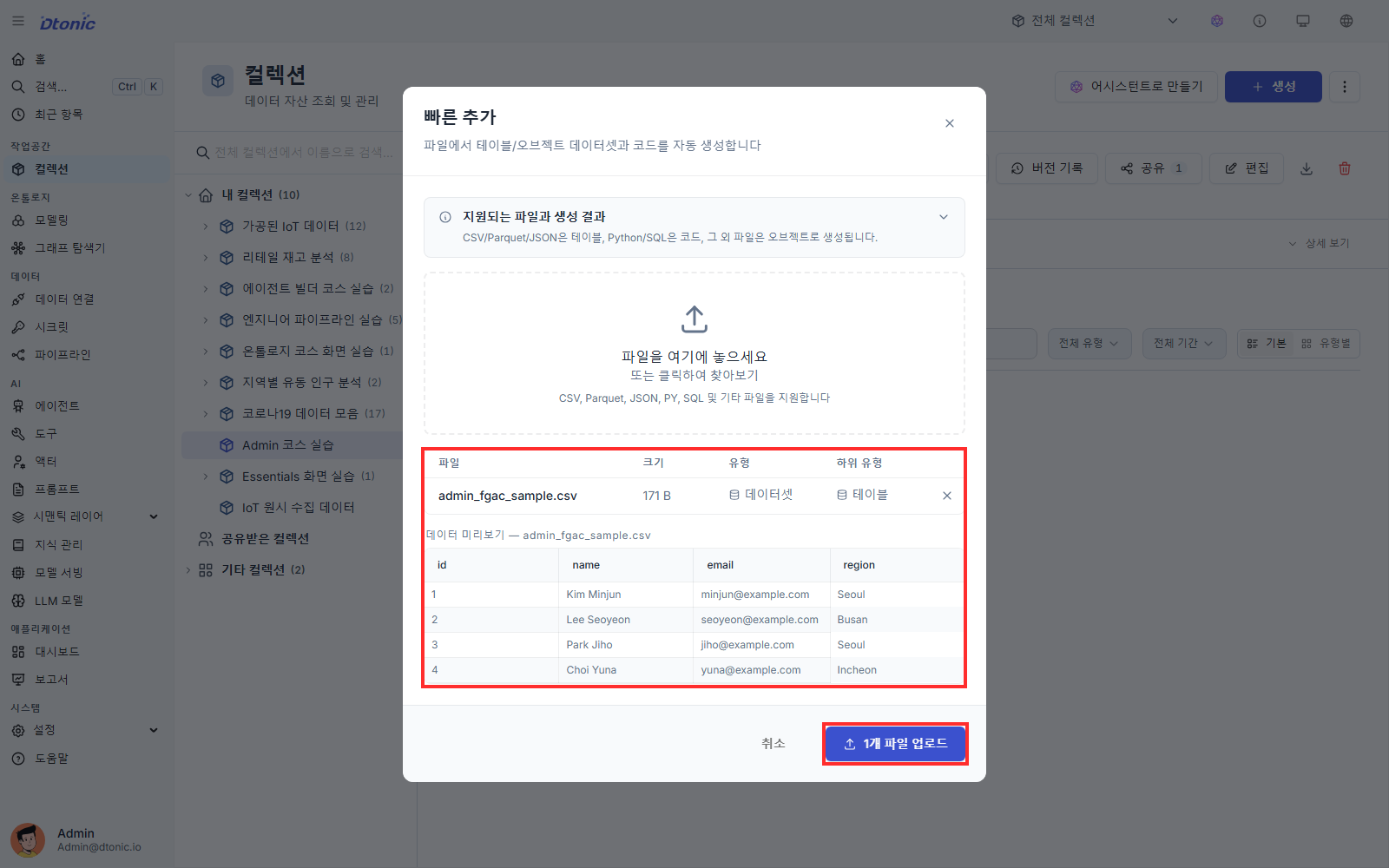
- Select Add Item in the upper-right corner, then select Quick Add….
- Drag
admin_fgac_sample.csvinto the upload area, or open it with the file picker. - In the preview, confirm the four columns
id,name,email, andregion, along with four data rows. - Select Upload 1 file and wait for the
admin_fgac_sampledataset to appear in the collection.
Open Data Access Policies
- Open Collections in the sidebar and select the practice collection.
- Open the
admin_fgac_sampledataset. - Select the Data Access Policies tab on the detail page.
- Select Add Policy.
Policies are managed inside each dataset, not in a separate Settings → Policies page. Each policy targets one user or group.
Select the subject
Enter at least two characters in Search user or group under Subject, and select the user or group you prepared for verification.
The subject is fixed after creation. Add another policy if a different user or group needs the same restrictions.
Mask the email column
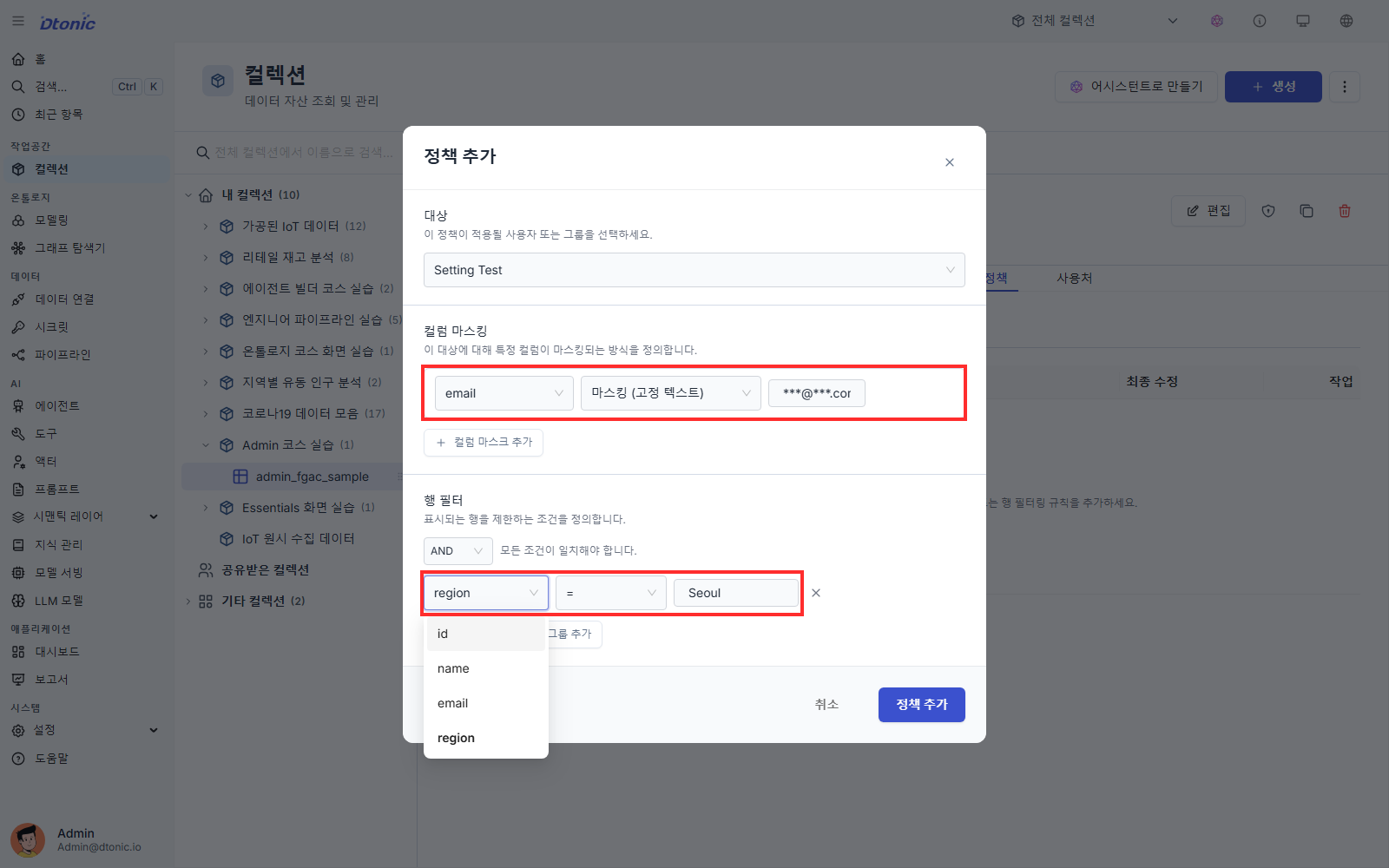
- Under Column Masks, select Add Column Mask.
- Select
emailas the column. - Select Redact (fixed text) as the mask type.
- Enter
***@***.comas the replacement text.
The current Manager only stores schema-preserving masks for data access policies. Choose fixed-text redaction, NULL, partial start or end, or hashing according to the intended protection. Do not select Drop (hide column) even if it appears in the portal, because the current Manager rejects it.
Add a region row filter
- Under Row Filters, select Add Condition.
- Select
regionas the column. - Select
=as the operator. - Enter
Seoul, or another value that actually exists in your data.
The value is a literal, not a user attribute variable such as ${user.region}. To give each region a different slice, create one policy per subject—for example, one for a Seoul group and another for a Busan group.
You can combine multiple conditions with AND or OR, and nest them with Add Group.
Save and verify the result
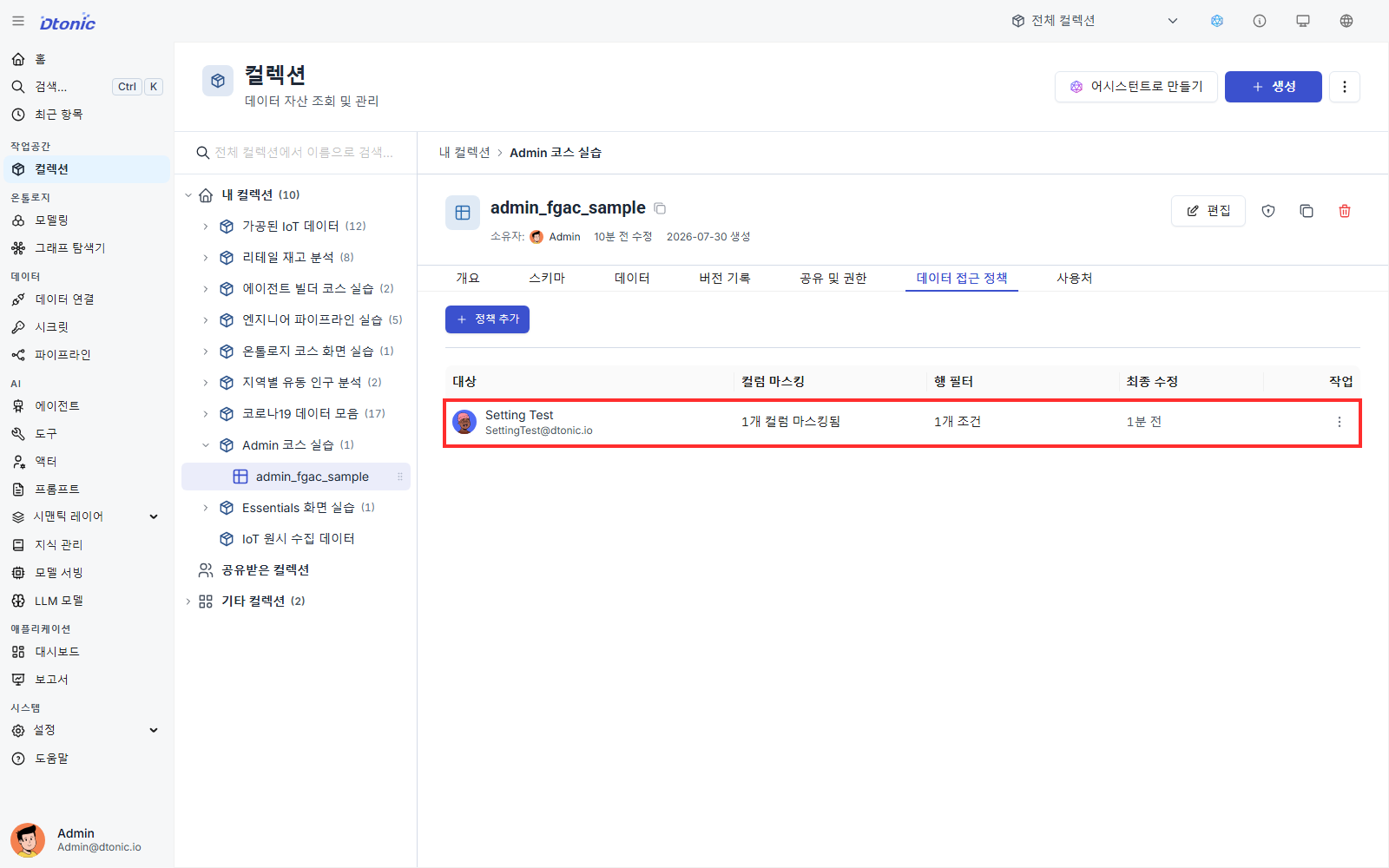
- Select Add Policy to save.
- Confirm that the list shows the subject, masked-column count, and row-condition count.
- Sign in as the target user in a private window or another browser.
- In the dataset's Data tab or a SQL query, confirm that
emailshows the fixed text and only rows withregion = Seoulare returned. - Confirm that an ordinary user outside the policy subject does not receive the same restriction.
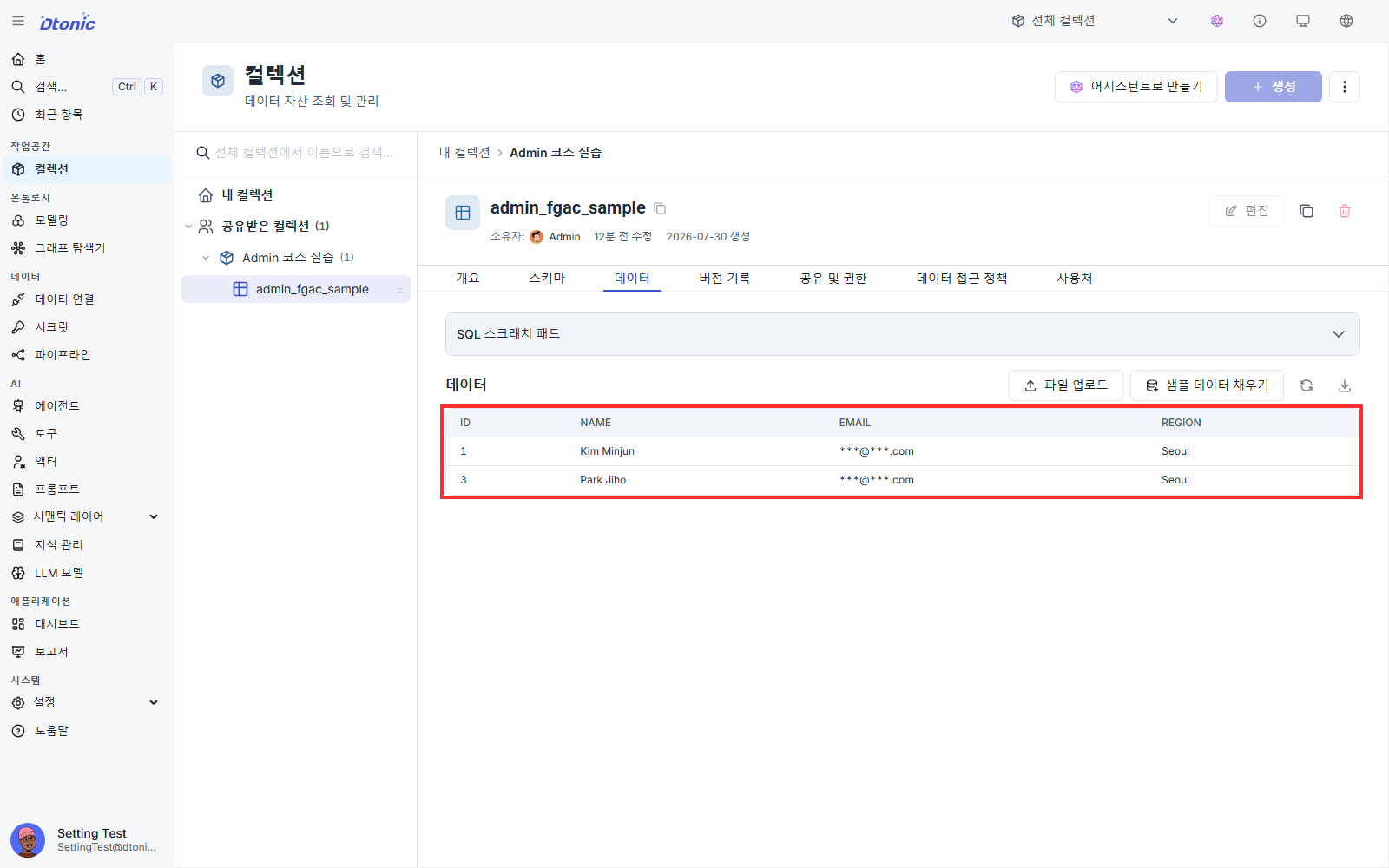
The portal does not provide per-user permission simulation or a policy preview. Verify the query result with a real non-administrator account.
When several policies apply
A user policy and policies for several of that user's groups can apply together. Row filters are combined with AND to narrow the result, and the most restrictive mask wins when several policies mask the same column.
Self-check
- You created the policy in the dataset's Data Access Policies tab.
- The policy has exactly one user or group as its subject.
- You verified the
emailmask andregionfilter with a non-administrator target account. - You did not use a dynamic user expression such as
${user.region}.
Next lesson
Change and recover a policy safely within the current product scope, which has no impact preview or automatic rollback.