Ask the AI Assistant your first question (5 min)
Find data with the Portal Assistant, review a dashboard proposal, and use AI inside a code editor.
By the end of this tutorial
- Ask the AI Assistant about data you can access.
- Distinguish a proposed dashboard preview from the approval that creates it.
- Use AI code generation from the code editor toolbar.
Prerequisites
Sign in to Portal and make sure you can read at least one collection and dataset. If you do not have your own data, complete Create your first collection (5 min) first.
If the panel reports that an Assistant model must be registered or selected, the AI features are not ready yet. Ask an administrator to confirm Assistant model registration and default-model selection. Administrators can follow Registering and Activating Assistant Models in the related manuals at the bottom of this page. Until a model is ready, you can inspect the UI locations below, but you cannot complete the question, dashboard-creation, or code-generation exercises.
Assistant responses depend on your permissions, registered data, and the page context. You can copy the prompts below, but replacing the example dataset and column names with your own produces more useful results.
1. Open the Assistant
Select the AI Assistant icon in the top navigation. The D.Hub Assistant panel and its message box open on the right. You are ready when the message box accepts a question.
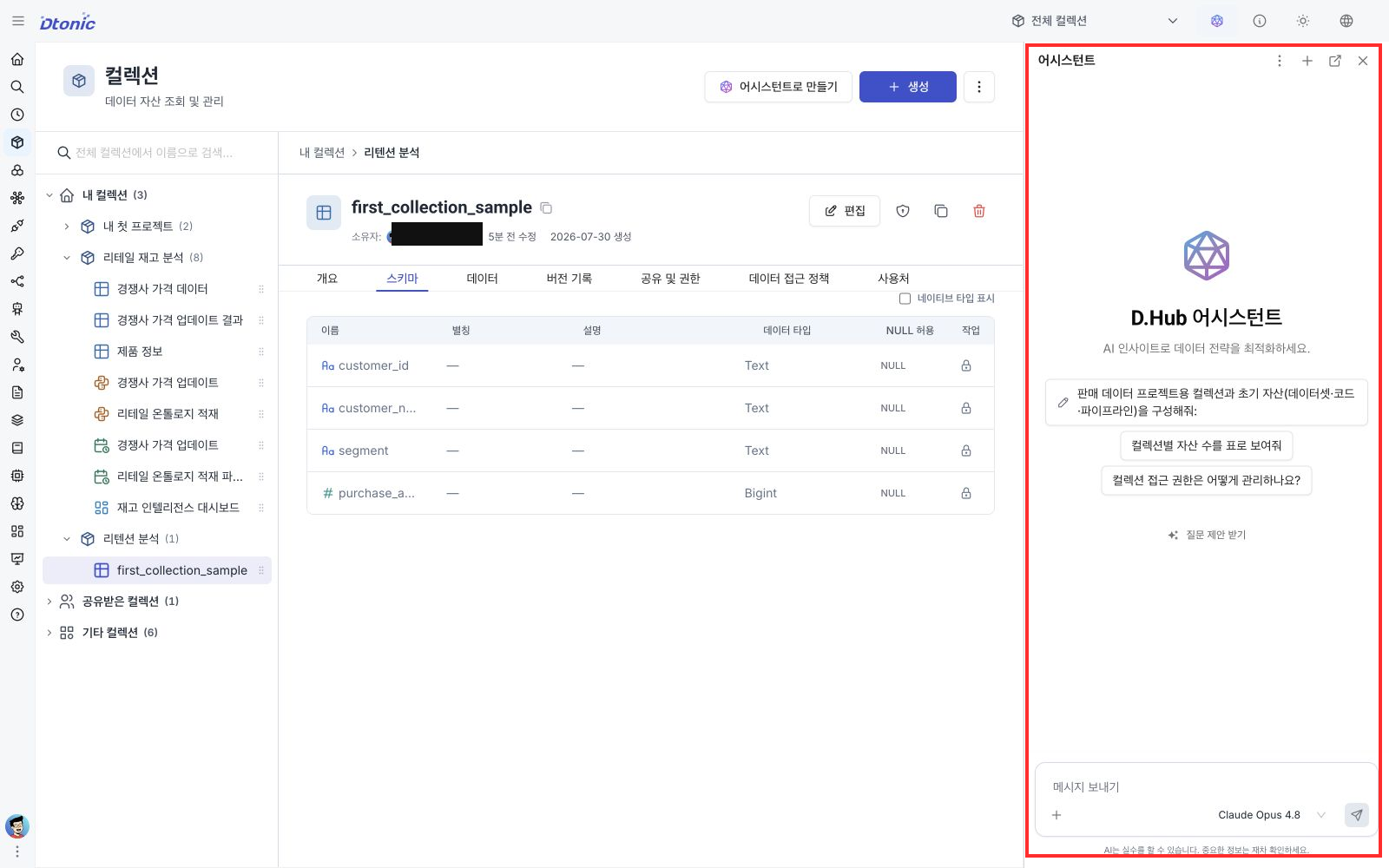
2. Find accessible data
If you used the sample CSV from the previous tutorial, the created dataset is named first_collection_sample. Ask:
Find the
first_collection_sampledataset I can access. Include its name, ID, and collection alias.
Depending on the registered data and Assistant configuration, the response may be plain text, a list of names and IDs, or a structured result. The collection may still be omitted. If several datasets have the same name, use global search to search by asset name, open each collection-scoped candidate, and compare its ID with the ID returned by the Assistant.
The Assistant runs tools within your current permission scope. If an expected dataset is missing, add specific clues such as its collection, name, or tags to your prompt and confirm that you have read access.
When practicing with another dataset, put the dataset Name derived from the file name in your question. That is more precise than providing only the collection Alias shown in the list.
3. Review a dashboard proposal
After confirming the dataset and its real column names, ask:
Draft a dashboard with a bar chart of total
purchase_amountbysegmentfrom thefirst_collection_sampledataset.
Replace the code-formatted dataset and column names with names from your data. The Assistant may return an explanation and a Resource plan or dashboard preview. Preview sample data may not be the final query result, so review the following:
- Confirm the target collection and dataset.
- Check the chart type, category field, value field, and aggregation.
- Only when you want to create the assets, select Approve in the Approval required card. Select Reject to stop.
A preview alone does not save a dashboard. After approval, wait for the Assistant to return the creation result, then use its result link or open Dashboards in Portal to find the new dashboard. The exact response can vary with the request and execution result; this flow does not assume a separate Suggested actions panel or Apply changes button.
4. Generate code inside an editor
Practice by creating a new SQL Code item in the collection that contains first_collection_sample. You do not need another course or an existing Code item.
- On the collection detail page, select Add item.
- Select Code, then select SQL.
- Under basic information in Create Code, enter
segment_purchase_summaryas the Name and select Next. Add a numeric suffix if that name already exists. - In the Code step, select AI in the upper-right corner of the editor. Enter this request in AI Code Generation:
Write SQL that calculates total
purchase_amountbysegmentfrom the input data.
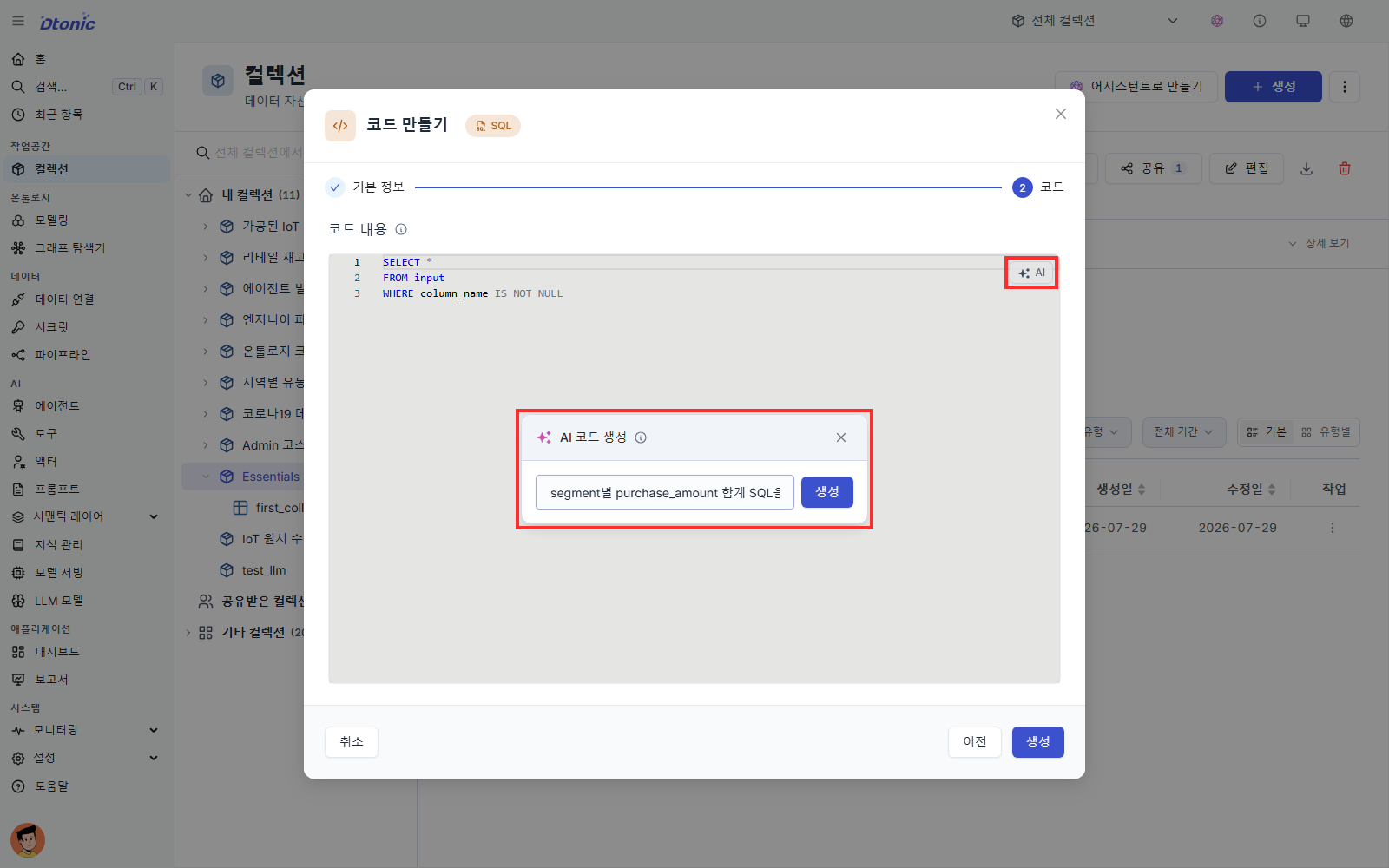
- Select Generate, then confirm that the result contains
SUM(purchase_amount)andGROUP BY segment. - Select Insert, then select Create at the bottom of the Create Code dialog to save the Code item. Insert changes only the editor; closing the dialog before Create does not save the item.
To request a different result, cancel the AI result and reopen AI with a more specific prompt. This tutorial verifies the generation and save flow without running the Code item.
If something does not work
- The message box is disabled: Check for an active Assistant model before troubleshooting resource permissions.
- The Assistant cannot find a dataset: Include the exact collection Name, dataset Name, or ID and confirm Reader access.
- No Approve card appears: The response may be an explanation or preview only. Ask explicitly to create the dashboard asset and name the target collection.
Next steps
- To let an agent use internal documents, register PDFs or reports as Knowledge and connect that knowledge in the relevant agent configuration.
- Review where the Assistant fits into an analyst workflow in Sharing, the AI Assistant, and what to learn next.